
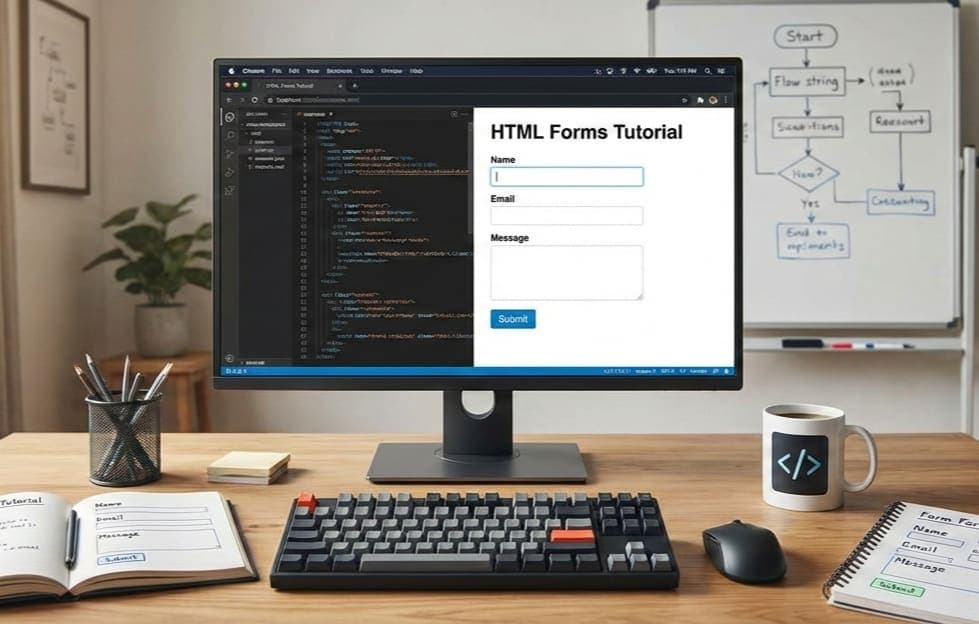
Introduction to HTML Forms
HTML forms are an essential part of web development, enabling user interaction and data collection on websites. Whether you're building a contact form, a survey, or a registration page, understanding how to properly create and manage HTML forms is vital. In this tutorial, we will explore the structure and functionality of HTML forms, from basic concepts to more advanced features.
What is an HTML Form?
An HTML form is a section of a web page that allows users to input data, which can then be sent to a server for processing. Forms are created using the <form> tag in HTML. This tag wraps around various elements such as text fields, checkboxes, radio buttons, and submit buttons, enabling a seamless way to collect user information.
Basic Structure of an HTML Form
The basic syntax of an HTML form looks something like this:
<form action="/submit" method="post">
    <label for="name">Name:</label>
    <input type="text" id="name" name="name" required>
    <input type="submit" value="Submit">
</form>
In this example, the action attribute specifies the URL where the form data will be sent upon submission, while the method attribute indicates whether to use GET or POST to send the data.
Common Input Types
HTML forms support various input types to gather different kinds of information. Here are some commonly used types:
- Text: For single-line text input (type="text").
- Textarea: For multi-line text input (<textarea>).
- Checkbox: For multiple selections (type="checkbox").
- Radio: For selecting one option from multiple choices (type="radio").
- Submit: To submit the form data (type="submit").
- Button: For custom JavaScript actions (type="button").
- Select: For dropdown lists (<select>).
Creating Your First HTML Form
Let’s create a simple contact form to illustrate these concepts:
<form action="/contact-submit" method="post">
    <label for="name">Name:</label>
    <input type="text" id="name" name="name" required>
    <label for="email">Email:</label>
    <input type="email" id="email" name="email" required>
    <label for="message">Message:</label>
    <textarea id="message" name="message" required></textarea>
    <input type="submit" value="Send Message">
</form>
This form collects the user's name, email address, and a message. Each input is labeled for better accessibility, and the required attribute ensures that users cannot submit the form without filling in all fields.
Understanding Form Attributes
Besides action and method, HTML forms can have several other attributes that enhance functionality:
- target: Specifies where to open the response (e.g., in a new tab).
- enctype: Defines how the form data should be encoded when submitted (useful for file uploads).
- autocomplete: Enables or disables browser autofill for the form fields.
Handling Form Submission
Once a user submits the form, the data is sent to the server specified in the action attribute. On the server side, you can process the data in various ways depending on your backend framework or language. For instance, using PHP, you might handle the incoming data as follows:
<?php
if ($_SERVER["REQUEST_METHOD"] == "POST") {
    $name = $_POST['name'];
    $email = $_POST['email'];
    $message = $_POST['message'];
    // Process the data (e.g., save to database, send email)
}
?>
Form Validation
Client-side validation can enhance user experience by checking input values before the form is submitted. HTML5 provides built-in validation features through attributes like required, minlength, maxlength, and more.
Example of Validation Attributes
<input type="email" id="email" name="email" required>
<input type="text" id="username" name="username" minlength="5" maxlength="15" required>
For more complex validation, consider using JavaScript to provide real-time feedback to users.
Styling HTML Forms
Styling plays a crucial role in improving the appearance of forms. Using CSS, you can make forms visually appealing and ensure a great user experience. For instance:
form {
    display: flex;
    flex-direction: column;
}
input, textarea {
    margin: 5px 0;
    padding: 10px;
}
Advanced Form Elements
HTML forms aren’t limited to basic inputs. You can create more complex layouts using:
- Fieldsets: Group related elements with <fieldset>.
- Legend: Provide a caption for your fieldset using <legend>.
- Forms and Accessibility: Ensure your forms are accessible by using semantic HTML and ARIA roles.
Exploring Browser Compatibility
It’s essential to consider browser compatibility when designing forms. While modern browsers generally support the latest HTML5 features, always check compatibility tables for specific attributes and elements.
Integrating with Backend Technologies
Depending on the technology stack you use, integrating forms with backend systems can vary. For instance, if you use Node.js, you may employ libraries like Express.js to handle form submissions effectively. Understanding how to connect these elements enhances your web applications significantly.
Conclusion
Mastering HTML forms is crucial for any web developer, as they form the backbone of user interaction on websites. From creating simple forms to implementing complex structures, the possibilities are endless. Embrace these principles, experiment with different input types, and always prioritize user experience. Happy coding!